 |
Open Test Framework
|
|
|
Open Test Framework
|
|
For performance and memory analysis, the OTX runtime provides a simple profiling mechanism. For each executed OTX node, a highly precise timestamp as well as CPU load are written to a profiler file (*.prf).
Note: Writing to the file is runtime-optimized so that it hardly affects the overall execution performance.
Using profiling in the OTF:
ON.Using profiling in the OTX runtime outside the OTF:
*.prf) must be loaded in the tool window. If there are multiple files, loading one is sufficient. The OTF automatically detects which files belong together.Note: If the Profiler window is not visible, it must be enabled in the Display menu.
Note: When profiling, the project loaded in the OTF should be identical to the executed project.
The following data is stored in the profiler file for each executed OTX node:
| Measurement | Description |
|---|---|
OtxId | Unique ID for each OTX node |
ThreadId | Unique ID for each thread |
Timestamp | Timestamp in microseconds |
CPU Load System | CPU load in % of the entire system |
CPU Load Process | CPU load in % of the owner process |
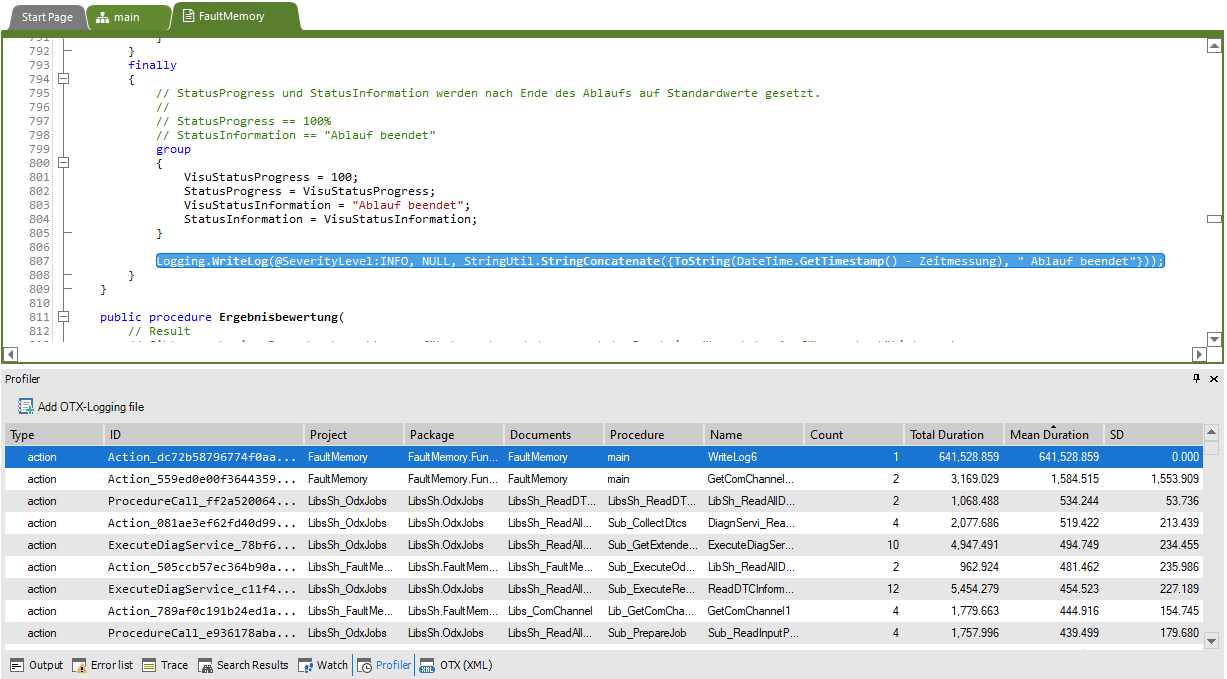
The following tables are available for profiling analysis. The rows can be sorted by columns to determine, for example, which line was called most frequently or which line took the longest to execute.
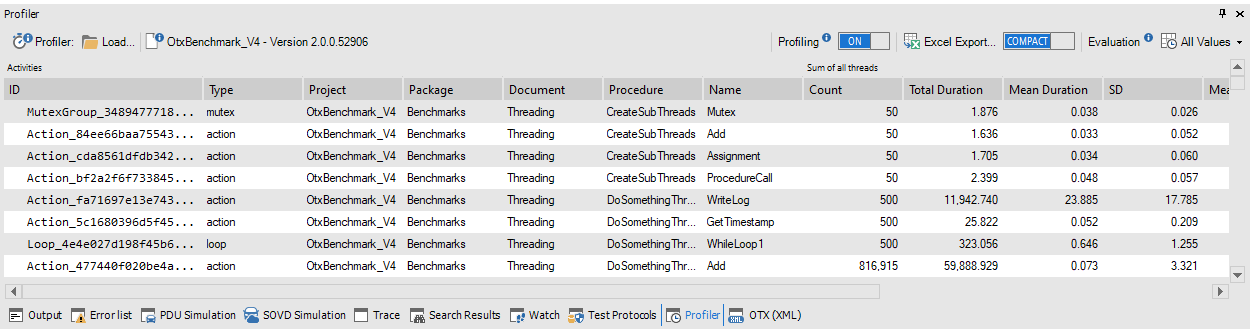
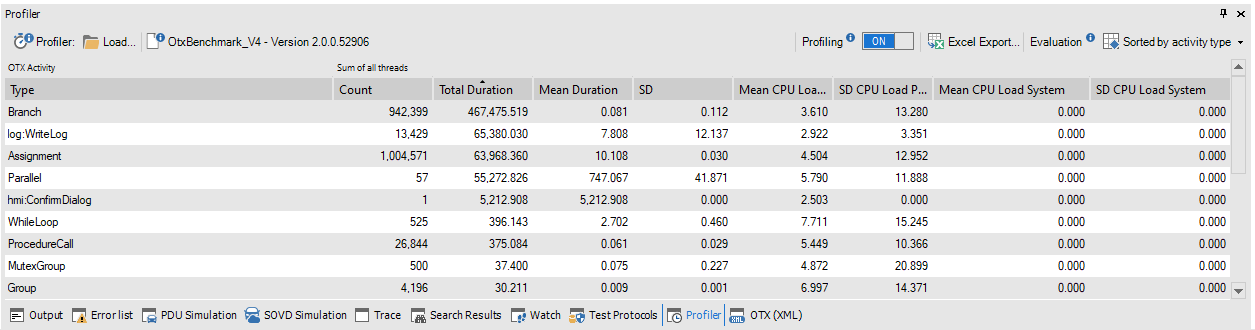
OtxId. This allows identification of hot spots that can be assigned to a specific node. The values can be displayed for each individual thread or aggregated across all threads, see the Details button.ExecuteDiagService) are aggregated into a single row and listed together. This allows identification of hot spots that can be assigned to a specific activity type.Note: For more detailed analysis, a table can be exported to Excel.