 |
Open Test Framework
|
|
|
Open Test Framework
|
|
A project is a closed unit that can be transported and executed. To transport or executed a project the following container file types are supported:
Note: PTX/PPX/PUX files can be exported via the context menu of a project node in the Solution Explorer.
A PTX file contains a OtfProjectStructure_ProcedureProject. A PTX file is a ZIP archive with the file extension ptx. It consists of a table of contents, the so-called index.xml file and the OTX files in the OTX folder. The OTX files are stored in subfolders according to their package structure. It also contains all referenced projects as PTX files in the PTX folder. In addition, project settings can optionally be transported.
Note: The structure of a PTX file is standardized. Any standards-compliant OTX tool must be able to read this file.
A PTX has the following structure, see OtfProjectStructure_Structure:
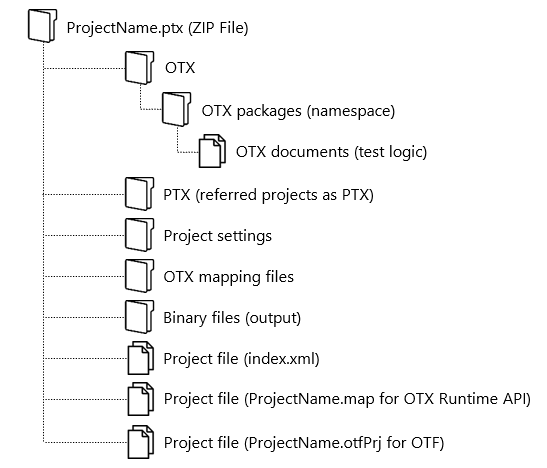
Users can exchange the test sequences to the other computers while all the environment settings are still preserved. A PTX file can be imported back into a solution as a project, or it can be used as a reference in another project. A PTX file can be executed with the OTX-Runtime API.
Note: PTX files can be signed and/or encrypted.
A PPX file contains a OtfProjectStructure_PlayerProject. A PPX file is a ZIP archive with the file extension ppx. The structure is based on a PTX File, but a PPX does not contain any OTX files but only PTX projects, which are referenced in the player. A PPX can thus be used to transport several OTX projects, for example to setup a complete control unit. In addition, it contains project settings, the player layout or control files. Control files describe the structured, parametrized execution of several OTX procedures. Layout files describe the layout of one or more player monitors.
Note: The structure of a PTX file is not standardized and cannot be read by other tools.
A PPX has the following structure, see OtfProjectStructure_PlayerStructure:
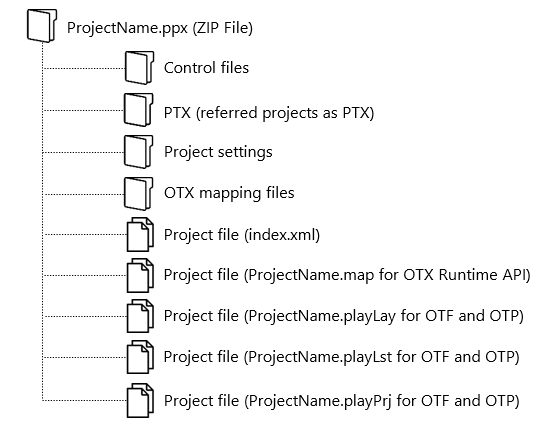
Users can exchange the test sequences to the other computers while all the environment settings are still preserved. A PPX file can be imported back into a solution as a solution. A PPX file can be executed with the OTX-Runtime API.
Note: PPX files can be signed and/or encrypted.
A PUX file contains a OtfProjectStructure_TestProject. A PUX file is a ZIP archive with the file extension pux. The structure is based on a PTX File, but a PUX does not contain any OTX files but only PTX projects, which are referenced in the unit test project. A PUX can thus be used to transport unit test cases.
Note: The structure of a PUX file is not standardized and cannot be read by other tools.
A PUX has the following structure, see OtfProjectStructure_TestProjectStructure:
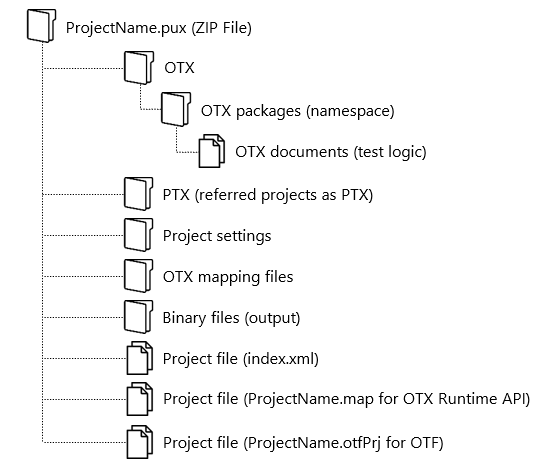
Users can exchange the unit test cases to the other computers. A PUX file can be executed with the OpenTestSystem.Otx.UnitTest.TestExecution.DotNet.exe application.
Note: PUX files can be signed and/or encrypted.
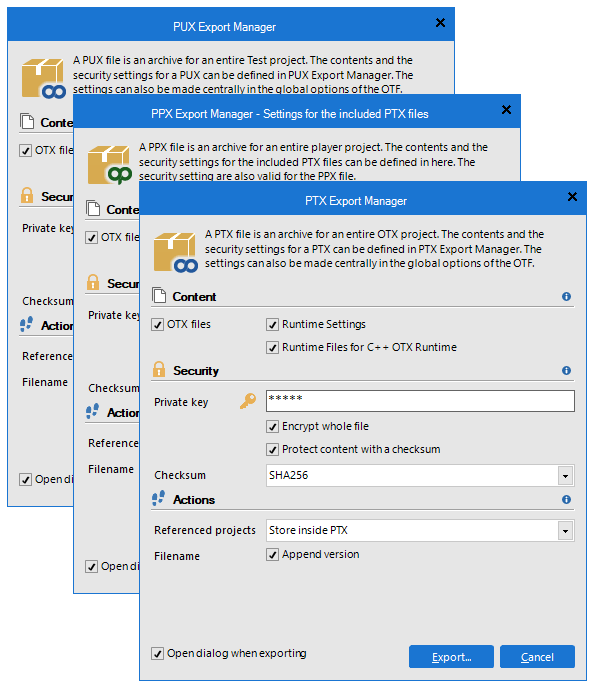
You can export a project can be exported to create a PTX/PPX via the context menu of a project node in the Solution Explorer. A PTX or PPX is a zipped file contains the files in the procedure project or player project. You can select which files to be included in the PTX/PPX. You can also encrypt the PTX/PPX for the security reason. These options of exporting PTX/PPX can be configure in the related sections (Save - PTX and Security - PTX) of the OTF global options, or if you have already enabled the Export Manager to be displayed when exporting, you can configure these options directly in the Manager. To enable the Export Manager, please tick at the "Open dialog when exporting" check box in the General settings page of the OTF global options.
Note: Please note that when you modify the options in the related sections in setting (Save - PTX and Security - PTX) in the OTF global options, it shall adapt the modifications to the Export Manager and vice versa.
The export manager exports projects into a PTX, PPX or PUX file. The export manager can be opend via the context menu of a project node in the Solution Explorer.
| Control | Description |
|---|---|
| CheckBox OTX files | Includes the OTX folder containing all OTX files in the PTX library |
| CheckBox Runtime settings | Includes all project settings in the PTX library |
| CheckBox Runtime files | Includes all files necessary for runtime execution |
| CheckBox Script files | Includes the script files, see OTX Scripting Support |
| Control | Description |
|---|---|
| TextBox Private key | Specifies a password to encrypt and/or sign the exported PTX/PPX library. |
| CheckBox Encryption | Encrypts the entire PTX/PPX file (checked) or not (unchecked) when exporting a project. Note that once you encrypted the file, it can not be imported again into the OTF. The encrypted PTX/PPX file can only be opened by the OTX-Runtime API (DotNet/Java). |
| CheckBox Protect with checksum | Protects the PTX/PPX file against an encrypted checksum (checked) or not (unchecked). The protected PTX/PPX file can be opened with the OTF or the OTX-Runtime API (DotNet/Java). |
| ComboBox Checksum | Selects the hash algorithm. |
| Control | Description |
|---|---|
| ComboBox Referenced projects | Selects the behavior with the referred projects (applied to projects and to PTX files which are not included): ● Store inside PTX: The references will also be exported and included in the newly created PTX file. The absolute and relative paths of the included references will be modified to adapt the inclusion. ● Store next to PTX: The references will also be exported to the same output folder of the newly created PTX file. The absolute and relative paths of the included references will stay the same. ● No action: The references will not be exported or included. The absolute and relative paths of the included references will stay the same. |
| CheckBox Append version | Appends the project version number to the exported PTX/PPX file name. |
| Control | Description |
|---|---|
| ComboBox Tool Version | If an Builder Checker has been installed, a specific tool version can be selected here. The PTX will then be exported using this version. |