The Open Test Framework is equipped with a licensing system. The licensing system is web-based on the so-called License Portal.
There are two main types of licenses:
- Activation via User Login
The user receives login credentials and must sign in to use the software. The license is then bound to the session. When the user logs out, the license is released again.
- Activation via License Key
The user must enter a license key once to activate the license. To use the license on another machine, it can be deactivated.
Note: Without a valid, activated license, the OTF cannot be executed.
Activation via User Login
With activation via user login, the user receives credentials (username and password) that must be used to log in to the application. An active internet connection is required to use the license. The application must be able to communicate with the backend via HTTPS and must not be blocked by a firewall.
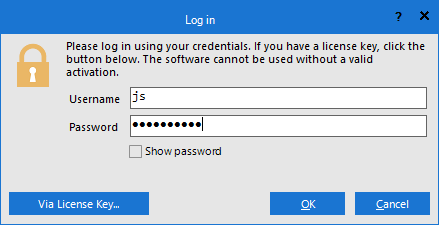
Note: An active internet connection is required to use the license. The application must be able to communicate with the backend via HTTPS and must not be blocked by a firewall.
Activation via License Key
A license can be activated on a computer any number of times (for example, due to changing of the hard drive) or deactivated (for example, to transfer the license to another computer). If the license is used on more than one desktop, a further development license is necessary, see general terms and conditions. There are two license types:
- Evaluation version
- An evaluation version has no limited functionality
- An evaluation version is limited to 30 days duration
- An evaluation cannot be deactivated or transferred to another computer
- Full version
- A full version has no limited functionality
- A full version is executable unlimitedly
- Any updates can be installed within the maintenance period.
- Outside of the maintenance period, only updates that were valid until the end of the maintenance period can be installed.
Note: To activate or deactivate a license an internet connection is recommended but not necessary.
Activation
A license is generated by emotive and have to be activated at the target computer. Without a valid activation the OTF cannot be started. The user receives the license code inside the License Portal. The license code consists of the license ID (left part) and the password (right part).
Note. The license ID is public and the password is confidential.
Activate the OTF by the following steps. It is assumed that the OTF is already installed at the target computer, see Installation.
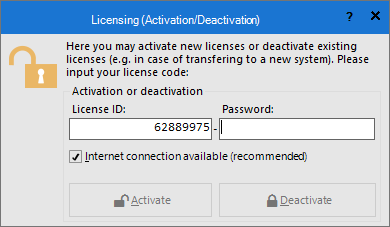
- Start the OTF.
- If the OTF is not yet activated, a licensing window will appear.
- Enter your license ID in the first field and your password in the second field.
- If your computer is connected to the internet, click Activate. The activation process may take some time. Once completed, the licensing window will close and the current license data will be displayed.
- If your computer is not connected to the internet, deselect the corresponding checkbox and click Activate. A new window will open to guide you through the manual activation process.
- Activation is complete.
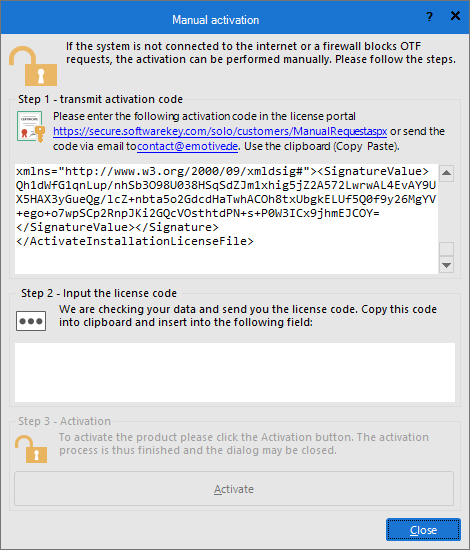
Note: You can manually activate your license via our License Portal.
Deactivation
An activated development license can be deactivated on the target computer. Possible reasons for deactivation include:
- Transfer the license to another computer To do this, the license must be deactivated on the old computer and activated on the new one (see Activation).
- Return the license This may be required for license upgrades or for evaluation versions that are not converted into a full version.
To perform the deactivation, the license ID and password are required. Proceed as follows:
- Start the OTF.
- Open the File tab in the Ribbon (Menu Bar) and click on Licensed for ... to open the licensing window.
- Enter your license ID in the first field and your password in the second field (these credentials were provided to you via email).
- If your computer is connected to the internet, click Deactivate. The deactivation process may take some time. Upon successful deactivation, the licensing window will close and the current license data will be shown in the About dialog.
- If your computer is not connected to the internet, deselect the corresponding checkbox and click Deactivate. A new window will guide you through the manual deactivation process. At the end, you will receive a verification code that must be sent to us to confirm the deactivation.
- Deactivation is complete.
Note: For deactivation without an internet connection, the verification code must be stored carefully, as it is required to complete the process and to allow future reactivation. If the code is lost, the deactivation process must be repeated to generate a new one.
